

A cellular HVAC failure alarm can alert you when its sensors detect a monitored condition, but the notification doesn’t necessarily mean the heating or cooling equipment has failed. A tamper alert, for example, may indicate that a sensor was disturbed while the system was armed. Check the thermostat and the air from the vents before interpreting the alert.
An unexpected notification can be worrying, especially when you’re away or relying on the system to keep the property comfortable. First, determine whether the HVAC equipment needs attention or whether the alert points to another cause.
Use a few practical checks: review the thermostat settings, see whether the system is heating or cooling as expected, and look for signs that a sensor was disturbed. If alerts keep returning, record what you observe and contact the appropriate support team.
Key Takeaways
- Check the thermostat’s mode and settings first, then compare them with what the HVAC system is actually doing.
- If heating is actively called for, check whether the air coming from the vents feels warm; the article explains what temperature range to look for.
- When multiple thermostats alert, compare their timing and symptoms to help narrow down whether the issue is shared or limited to one area.
- A sensor that has been disturbed can trigger an alarm when the system is armed, so inspect the sensor and note the alert details.
- Repeated alerts or signs that heating or cooling isn’t working call for support; cellular signal strength indoors can also affect sensor placement, according to the U.S. Environmental Protection Agency.
Reasons for heat failure notifications
Start by comparing the alert with the thermostat and the equipment’s current behavior. Then check the sensor, the cellular signal and the settings that may affect alert delivery.
-
Identify Detectable HVAC Failures
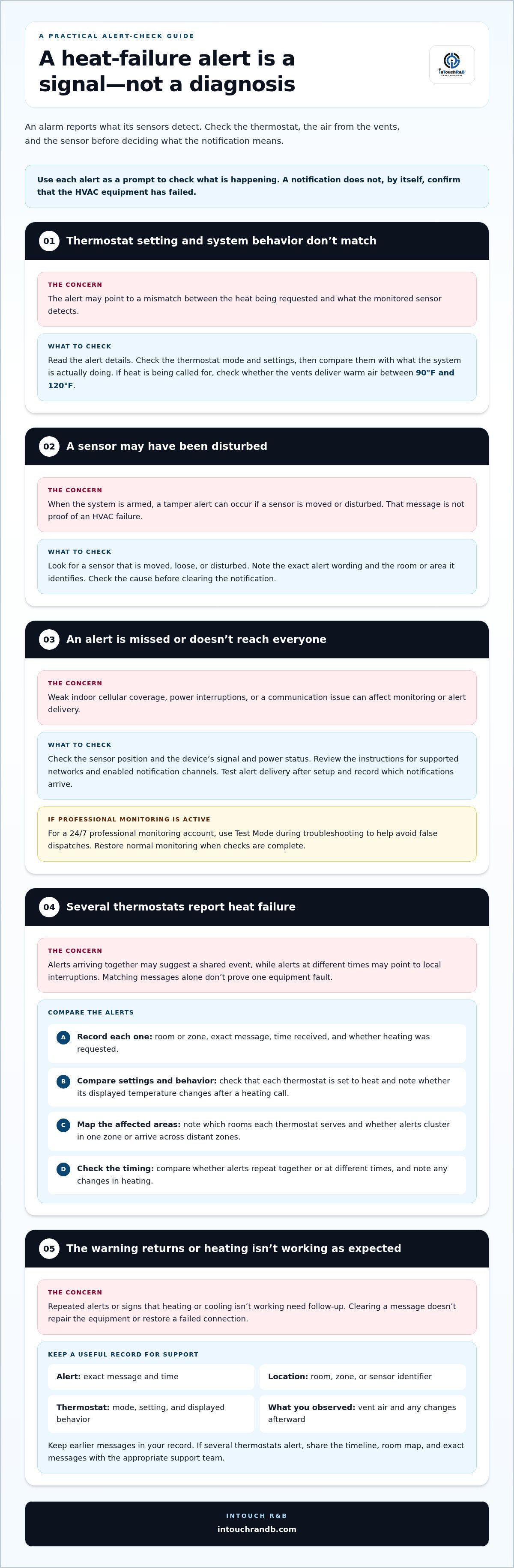
Read the alert details, then compare them with the thermostat’s mode and heating call. A heat-failure notification can point to a mismatch between the requested heat and what the monitored sensor detects; it doesn’t identify every possible mechanical fault. If the system calls for heat, check whether the vents deliver warm air between 90°F and 120°F.
If the system is armed, a disturbed sensor may trigger an alert. Look for a moved, loose or disturbed sensor before treating the notification as proof of equipment failure. Note the exact message and the area it identifies. Those details can help distinguish a heating issue from a sensor event.
-
Check Alert Delivery and Reliability
Check the sensor’s position and whether the alert reached its intended recipients. Cellular HVAC alarms use the configured notification channels, so review the device instructions to see which are enabled. Indoor cellular signal can be weaker, which may limit where a sensor can be placed.
Network and backup-power requirements vary by alarm. Follow the device instructions for supported networks and power, then check signal and power status. An outage or weak coverage can interrupt communication or monitoring. Test alert delivery after setup and record which notifications arrive.
For a 24/7 professional monitoring account, place the account on Test Mode during troubleshooting to help avoid false dispatches. Restore normal monitoring after the checks are complete.
-
Investigate False or Missed Alerts
Before clearing a notification, compare the thermostat settings, sensor condition and alert history. Possible causes include a tamper event while the system is armed, a displaced sensor, weak indoor cellular coverage or a delivery problem. An interrupted power or communication connection may also explain a missed alert, so check status indicators and recent messages.
No single U.S. code or insurance requirement applies to every property, so review the rules that apply to your location and the terms of your policy. To install and configure a cellular HVAC failure alarm, follow its instructions, position sensors as directed, connect the required power, and set alert recipients and thresholds. Test an alert to confirm the setup.
Clear a failure notification only after checking its cause and confirming normal operation. Acknowledging or deleting an alert won’t repair the HVAC system or restore a failed connection. Record the message, time, thermostat setting and air from the vents. If the warning returns, share those details with support rather than repeatedly dismissing it.
When multiple thermostats report heat failure
If several thermostat alerts arrive together, check the property as a whole instead of simply resetting the system. Compare their timing, settings and locations to see whether a shared condition could explain them.
- Record each thermostat’s alert before changing anything. Note the room or zone, exact message, time received and whether heating was requested. Alerts from upstairs and downstairs arriving together, for example, may point to a shared event; a single alert may help narrow the issue to one area. Keep the messages for comparison.
- Compare thermostat settings and reported behavior across the affected areas. Check that each thermostat is set to heat, and note whether its displayed temperature changes after a heating call. If two thermostats show different settings, correct only the unintended one and watch for further alerts. Matching messages don’t prove a single equipment fault; the devices may report separate conditions.
- Map the alerts to the building layout and heating zones. Write down which rooms each thermostat serves and mark the affected rooms on a simple floor plan. If alerts cluster in one zone, focus your observations there. If distant zones report at the same time, record that pattern too. A map gives support more context than a general report that “all thermostats failed.”
- Check whether the alerts repeat together or at different times. Shared timestamps may indicate a common event, while separate times may point to local interruptions. Compare each alert with the thermostat display and any changes in heating. Record messages before clearing them so you can see whether one alert preceded the others.
- When seeking help, share the timeline, room map and exact messages. Include the affected thermostats, their settings and what changed afterward. If an alert names a sensor or room, report that detail separately. Clear notes help support determine whether to investigate one zone, several sensors or a broader heating issue.
- After recording the alerts, watch for them to return under the same conditions. If one thermostat reports again, track that area separately. If several report together, note the time and any shared change you observed. A cleared message doesn’t prove the underlying cause is resolved.
Keep any panel restart attempt in the timeline alongside thermostat alerts, and record what was powered off and when it was started again. A user reported waiting at least 30 minutes after powering off the panel before trying to start it again. Treat that as a reported action, not proof that a restart will resolve a heat failure. Note whether the alerts return afterward, without erasing earlier messages or assuming the panel and thermostat reports share a cause.
If a sensor-related message appears, preserve its exact wording and identifier separately from thermostat alerts. The reported intermittent sensor tamper involved a Great Room Motion sensor identified as ID 23. Add the room and timing to the record, and distinguish the sensor report from any thermostat’s status. This keeps a recurring tamper observation available for support without implying it explains heat loss across multiple zones.
When to contact support
Contact support if an alert continues after basic checks, returns after being cleared or conflicts with what the thermostat shows. Use the steps below to decide what to report and which support team can address it.
- Call an HVAC technician if the thermostat calls for heat but the system doesn’t respond, or if heating stops again after a restart. Describe the thermostat display and what you observe at the vents. Note whether the system stays silent, starts and stops, or runs without warming the space. Don’t open equipment panels or attempt repairs unless you know how to do so safely.
- Contact the alarm system’s support team if the notification repeats while the thermostat and equipment appear to work normally. Share the exact message, the named device or zone, and when the alert arrived. Explain what you checked and whether the warning cleared or returned. This information can help distinguish a sensor or communication issue from an HVAC problem.
- Report a possible sensor problem if an alert identifies tampering, a changed position or inconsistent reporting. Describe any recent movement, cleaning or work near the sensor. Don’t remove or reposition it just to silence the alert. If the monitored account has a test setting, ask its monitoring operator how to use it before troubleshooting in a way that could trigger a response.
- Escalate a communication issue if alerts stop arriving, arrive late or the monitoring device indicates a connection problem. Tell support when you last received a message and describe any recent power or network interruption. For example, explain if the HVAC alert appeared locally but didn’t reach your phone. Ask which status or indicator to check next rather than assuming the equipment caused the gap.
- Prepare a concise record before contacting support: alert text, time, thermostat setting, affected area, and what happened afterward. If several devices report together, note whether their messages arrived simultaneously or in sequence. For a 24/7 professional monitoring account, coordinate troubleshooting with its operator to reduce the chance of a false dispatch. Keep the record until the alert stops recurring and normal operation is clear.
Don’t keep dismissing a recurring warning without identifying its cause. Repeated alerts, a thermostat that can’t maintain its setting or a system that stops producing heat all provide useful evidence. Share what you observed instead of guessing, and follow the guidance for your specific equipment and monitoring account.
What HVAC failures can cellular monitoring alarms detect?
Start by checking what the alarm monitors. A cellular connection carries information, while the sensors determine which HVAC conditions the system can report.
- Review the alarm’s listed measurements and enabled conditions. A temperature sensor reports the temperature where it’s installed; it doesn’t identify a failed compressor, blower or ignition component. The alert reports a measured condition or status change, not necessarily the mechanical cause. Check the device display or instructions to understand each message.
- Compare a temperature alert with the thermostat’s requested mode. If the thermostat calls for cooling while the monitored room continues to warm, for example, the alarm may report that condition once its configured trigger is reached. This can flag inadequate cooling, but it can’t identify whether the cause is airflow, equipment or something else.
- Check whether the system reports a heating or cooling call separately from room temperature. Depending on its inputs, a monitoring setup may report equipment status, a sensor reading or both. These signals differ: a call shows what the thermostat requests, while a temperature reading shows conditions near the sensor. Record both when available.
- Look for alerts about power or communication status. A monitoring device may report its own connection or power condition if those signals are part of its setup. Such a message concerns the alarm pathway, not proof that the furnace or air conditioner has failed. Compare it with the thermostat display and visible device indicators.
- Use each alert to guide a focused check. If one room reports a temperature problem, compare it with another area and note whether the thermostat requests heating or cooling. If equipment status changes but room conditions don’t, record both observations. This pattern gives a technician useful context without guessing at an internal fault.
- Read the exact alert before deciding what it shows. “Temperature high” describes a measured condition; it doesn’t name a failed part. “Sensor tamper” describes a sensor event that can occur when an armed system detects a disturbance. Treat the message as a clue, then check the named device or area.
- Record the alert, room, thermostat mode and what changed afterward. A clear timeline can help distinguish a temperature issue from a status or connection message. Cellular monitoring can send configured information to recipients, but what it can diagnose depends on the measurements and signals connected to the alarm.
Cellular monitoring can carry configured information, but the meaning of an alert depends on the input that produced it. Keep temperature readings, thermostat calls, equipment status, and connection or power messages distinct when reviewing an event; they describe different observations and do not, by themselves, identify a mechanical cause. If an account needs to be placed on test mode, a forum support reply gave 855-348-0367 as a phone number for contacting monitoring operators to place an account on test mode.
How do cellular HVAC alarms notify owners and technicians?
Trace the alert from the monitored condition to its recipient. The device settings determine who receives notifications and how they’re sent.
- Review the alert settings and list each recipient by role, such as owner, manager or technician. The cellular connection carries the message, while the setup determines who should receive it. An owner might receive a warning while a technician is contacted separately. Don’t assume a technician is notified automatically.
- When an alert arrives, record its exact wording and timestamp. Note the named sensor, room or monitored condition, then compare it with the thermostat display. A temperature reading gives different information from a sensor or connection message. This record helps the next recipient understand what the system detected.
- Confirm which notification methods the system supports and has enabled. Depending on the device and settings, a setup may use one or more configured channels. Follow the instructions for adding or changing recipients, then verify that their contact details are current.
- Test the notification pathway using the system’s procedure. Ask a recipient to confirm the test message arrived, and record its time and wording. If the owner receives it but the technician doesn’t, compare recipient settings before changing HVAC equipment. A successful test confirms delivery at that moment, not that every future alert will arrive.
- Check for a delay between the sensor event and the message received. If available, compare the device’s event record with the recipient’s message time. A sensor may register a change while indoor cellular signal is weak. Indoor cellular communications can be weaker, which may limit sensor placement.
- Agree on what each recipient should do when an alert arrives. The owner might check the thermostat, while a technician reviews an equipment problem. Write the next step beside each alert type so a temperature warning isn’t mistaken for a confirmed mechanical diagnosis. If the message names a sensor, include its location when passing on the details.
- Keep notification records together, including test results, recipient names, timestamps, and repeat messages. Share that history with support if the delivery path behaves unexpectedly. For monitoring that includes cellular HVAC alerts, review HVAC monitoring options to understand the product’s role in remote equipment monitoring.
InTouch R&B: Bilge Minder
Bilge Minder monitors bilge-pump conditions, while HVAC Minder is the relevant option for remote HVAC monitoring. If you’re troubleshooting recurring heating or cooling alerts, HVAC Minder connects the article’s topic with inTouch R&B’s equipment-monitoring offerings. Choose the product that matches the equipment you want to monitor: Bilge Minder for a bilge pump, or HVAC Minder for an HVAC unit. Clear alert records, including the message and affected area, can help you understand what you need to monitor. For other monitoring needs, inTouch R&B also offers Light Minder and a GPS Tracking System. Contact inTouch R&B to discuss which offering fits the equipment you want to monitor.
Make Your Monitoring Plan Work for You
Use what you’ve learned to decide who should receive alerts and how they should respond. A cellular HVAC failure alarm can support a broader property-monitoring plan when it suits the equipment and the people responsible for it. Set a clear process for reviewing notifications and recording what happens next.
If you’re considering remote property monitoring, inTouch R&B offers options for HVAC systems and other equipment. Choose a setup that matches what you want to monitor and how you prefer to receive updates.
Contact inTouch R&B to discuss your monitoring needs. Taking time to plan now can make the next alert easier to handle. NO Monthly Subscription Required.
Frequently Asked Questions
Why Did You Receive This Notification?
You received the alert because a monitored condition matched a trigger in the system’s setup. For example, inTouch R&B’s HVAC Minder monitors AC power, temperature, humidity and condensate-drain water level. Depending on the setup, a power interruption or rising water level may trigger an alert. Check which condition the message identifies, then compare it with what you observe at the equipment.
What is a cellular HVAC failure alarm and how does it work?
A cellular HVAC failure alarm uses sensors to detect monitored conditions and a cellular connection to send alert information remotely. For example, a sensor may detect a temperature change, prompting a notification to a configured recipient. The cellular connection sends the alert without relying on the property’s Wi-Fi for that transmission. Check the system instructions to see which conditions it monitors and how recipients are configured.

Be the first to comment